Skip to the article content

Image Container


About the component

An image container is used to show an image, a title, rich-text, and optionally link to further content. This component allows the image to be placed on the left handside and the other components on the right hand side. Image container is built on top of Teaser and hence when you configure image container you will see the Teaser dialog being displayed.


Points to remember about this component

  • There is no top & bottom style in the new Image Container 
  • Image size can be slightly increased by setting the style of Image Grid Count to 'seven'. The default is 50-50 for image and text which means the grid count is 6. 


View the component style options

Click here for figma link

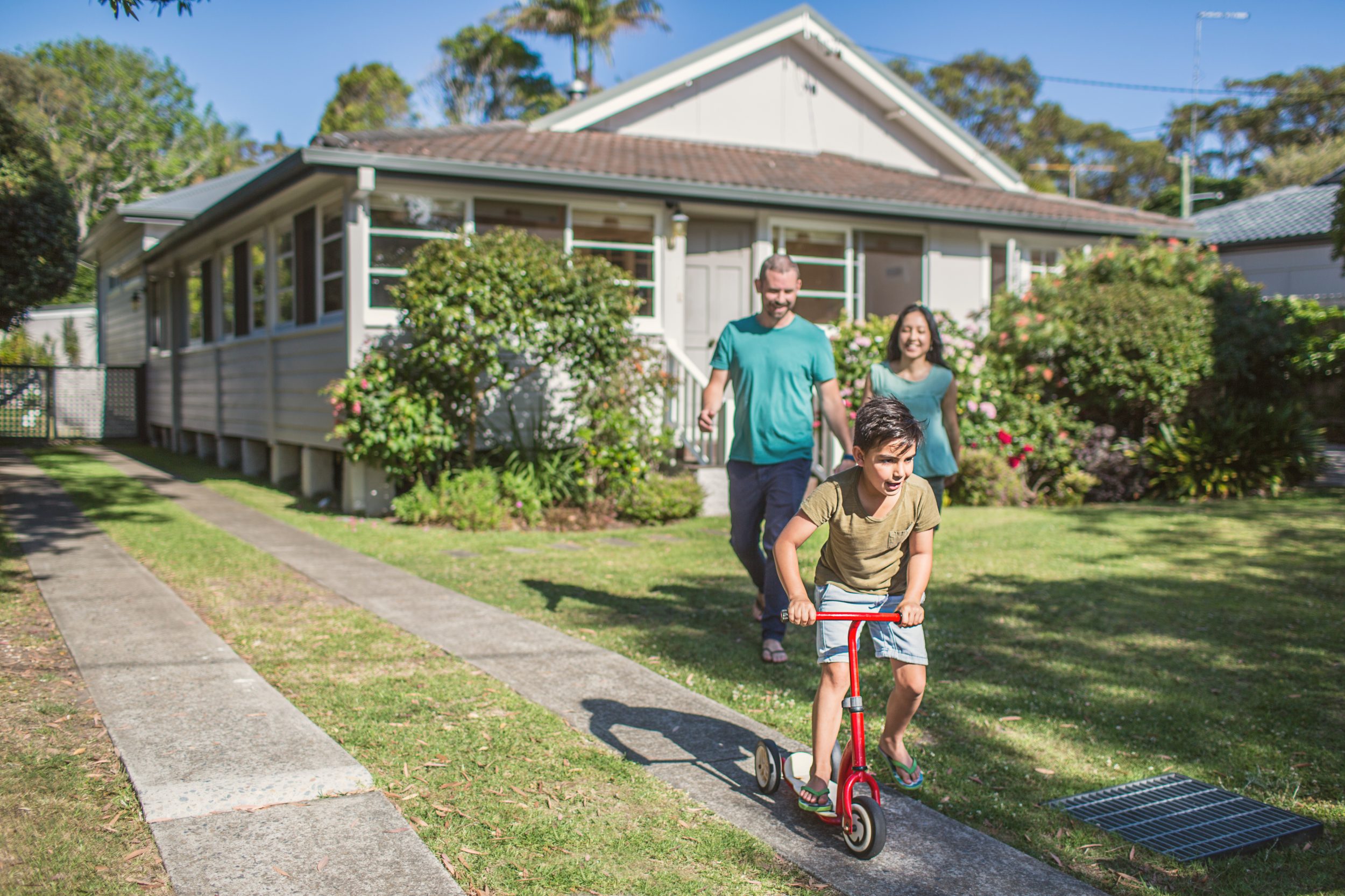
Image container - image on left (padding 30px)


Added TEsting tel number - For support, call us at 1800 687 626.



Image grid count: Three

Lorem ipsum dolor sit amet, consectetur adipiscing elit, sed do eiusmod tempor incididunt ut labore et dolore magna aliqua. Ut enim ad minim veniam, quis nostrud exercitation ullamco laboris nisi ut aliquip ex ea commodo consequat. Duis aute irure dolor in reprehenderit in voluptate velit esse cillum dolore eu fugiat nulla pariatur. Excepteur sint occaecat cupidatat non proident, sunt in culpa qui officia deserunt mollit anim id est laborum.


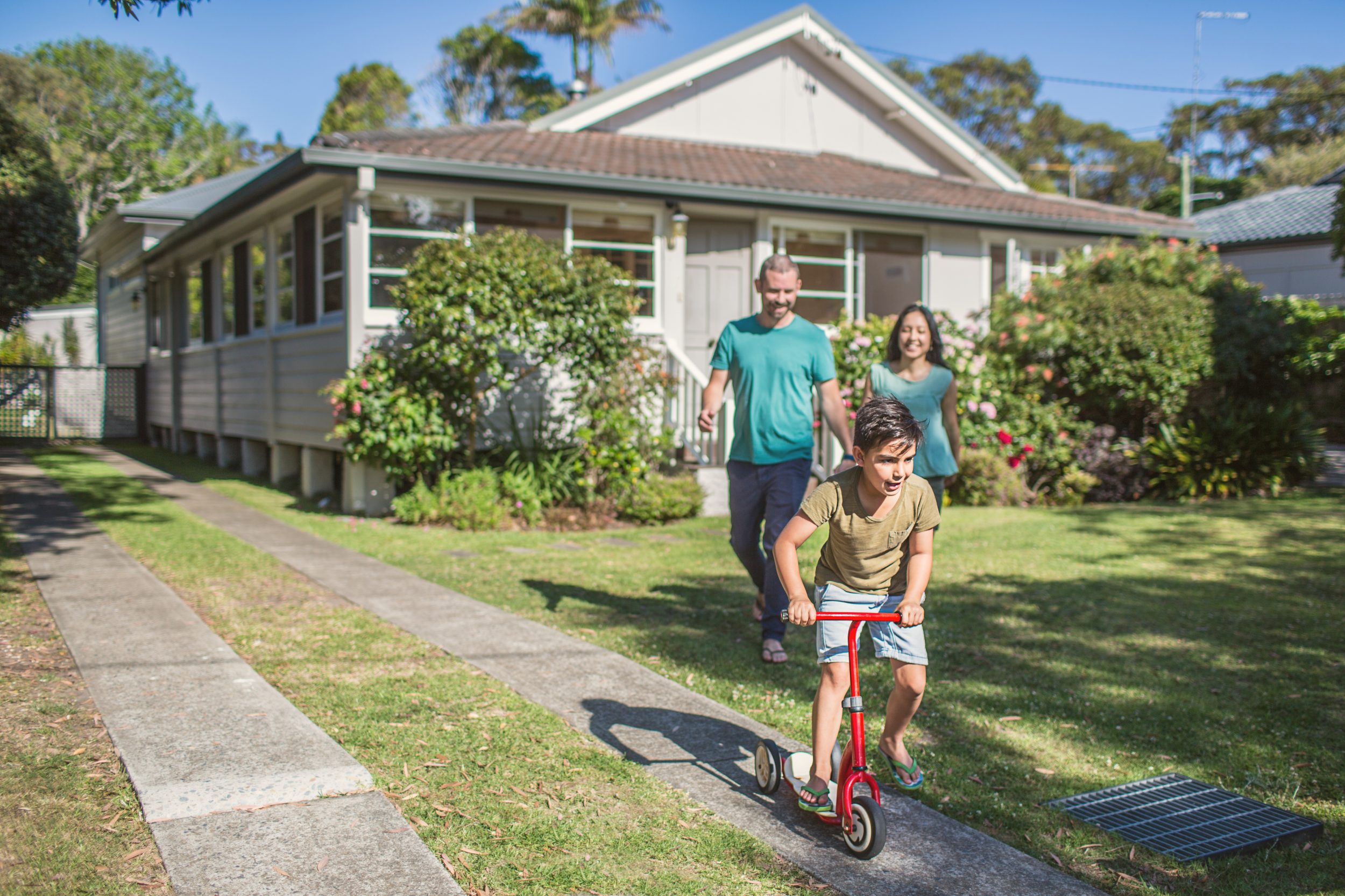
Image container - image on right (padding 30px)
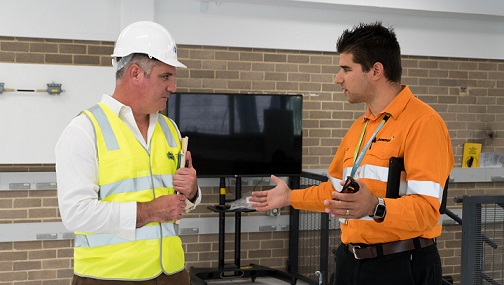
Image grid count: Three

Lorem ipsum dolor sit amet, consectetur adipiscing elit, sed do eiusmod tempor incididunt ut labore et dolore magna aliqua. Ut enim ad minim veniam, quis.


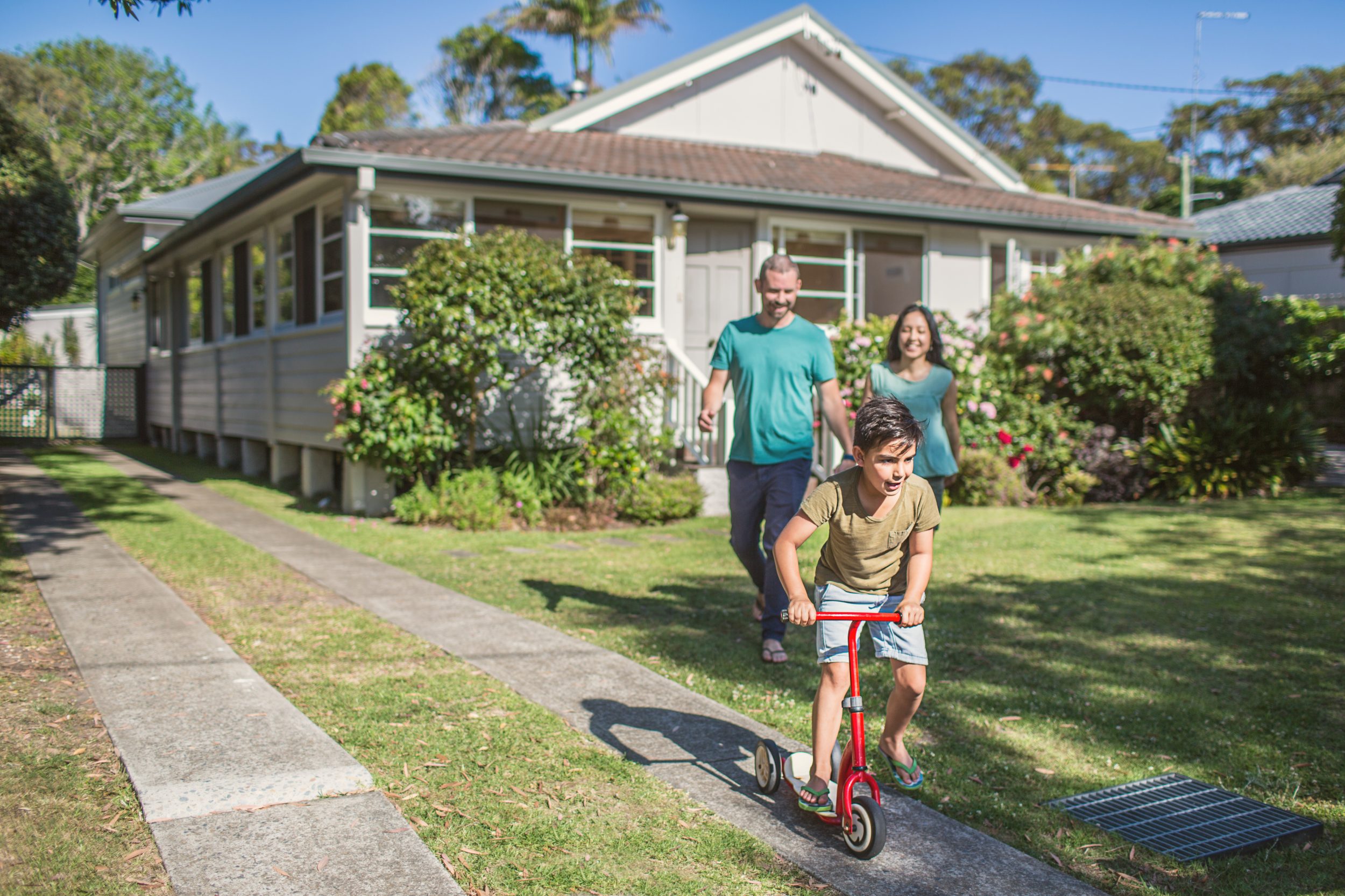
Image container - image on left (padding 50px)


Added TEsting tel number - For support, call us at 1800 687 626.



Image grid count: none

Lorem ipsum dolor sit amet, consectetur adipiscing elit, sed do eiusmod tempor incididunt ut labore et dolore magna aliqua. Ut enim ad minim veniam, quis nostrud exercitation ullamco laboris nisi ut aliquip ex ea commodo consequat. Duis aute irure dolor in reprehenderit in voluptate velit esse cillum dolore eu fugiat nulla pariatur. Excepteur sint occaecat cupidatat non proident, sunt in culpa qui officia deserunt mollit anim id est laborum.


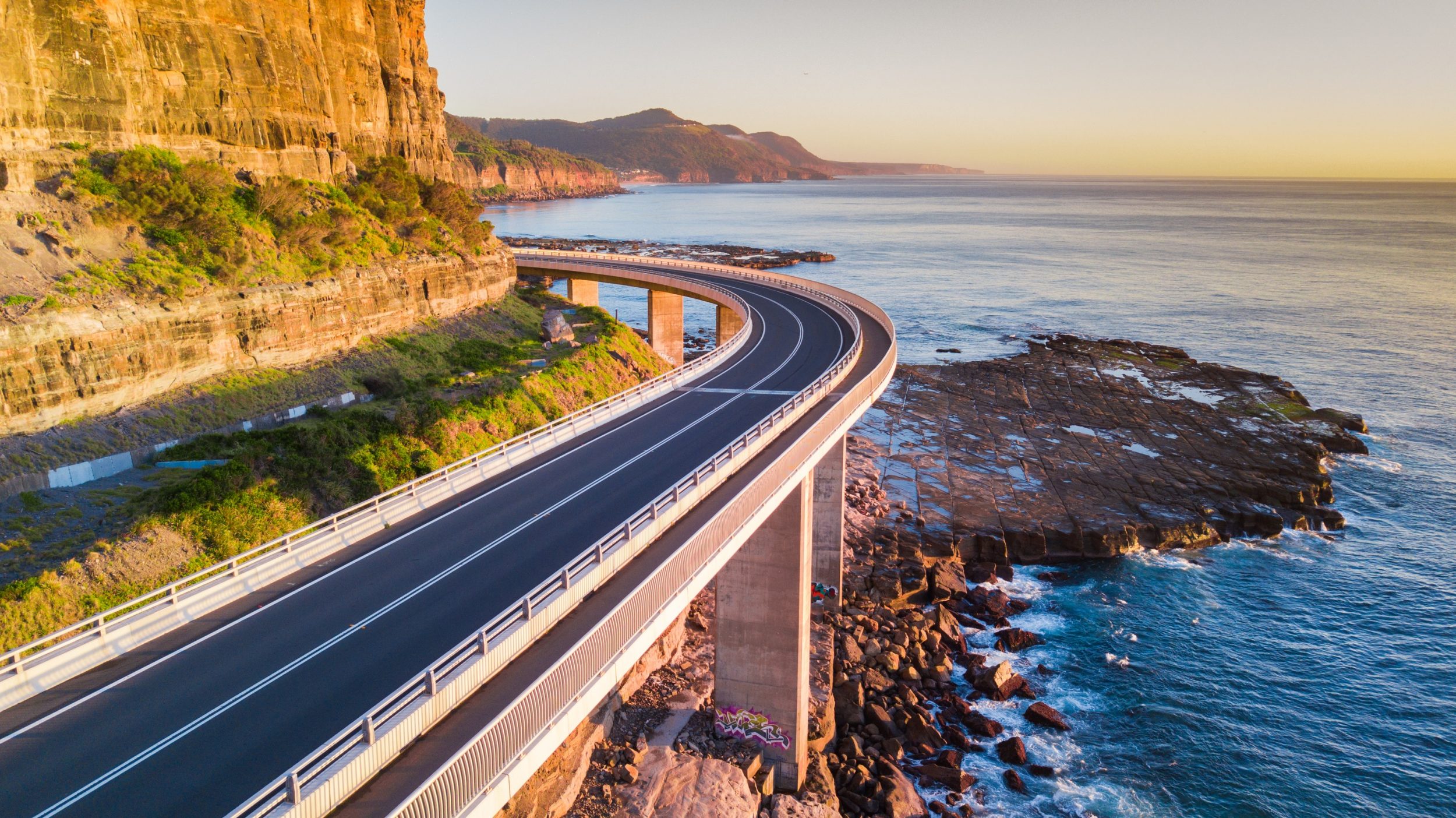
Image container - image on left (padding 50px)
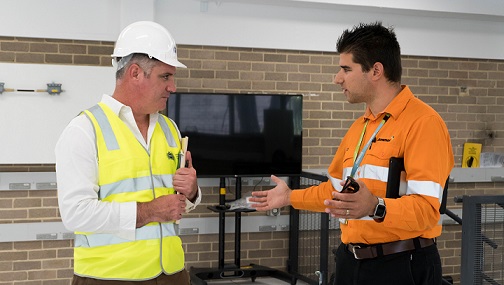
Image grid count: seven

Lorem ipsum dolor sit amet, consectetur adipiscing elit, sed do eiusmod tempor incididunt ut labore et dolore magna aliqua. Ut enim ad minim veniam, quis.


Added TEsting tel number - For support, call us at 1800 687 626.


Image container - image on right (padding 50px)


Image grid count: none

Lorem ipsum dolor sit amet, consectetur adipiscing elit, sed do eiusmod tempor incididunt ut labore et dolore magna aliqua. Ut enim ad minim veniam, quis nostrud exercitation ullamco laboris nisi ut aliquip ex ea commodo consequat. Duis aute irure dolor in reprehenderit in voluptate velit esse cillum dolore eu fugiat nulla pariatur. Excepteur sint occaecat cupidatat non proident, sunt in culpa qui officia deserunt mollit anim id est laborum.


Image container - image on right (padding 50px)
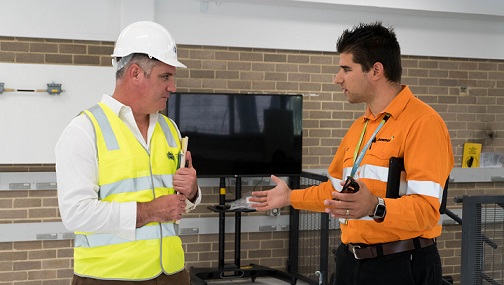
Image grid count: seven

Lorem ipsum dolor sit amet, consectetur adipiscing elit, sed do eiusmod tempor incididunt ut labore et dolore magna aliqua.


Added TEsting tel number - For support, call us at 1800 687 626.

Shadow styles
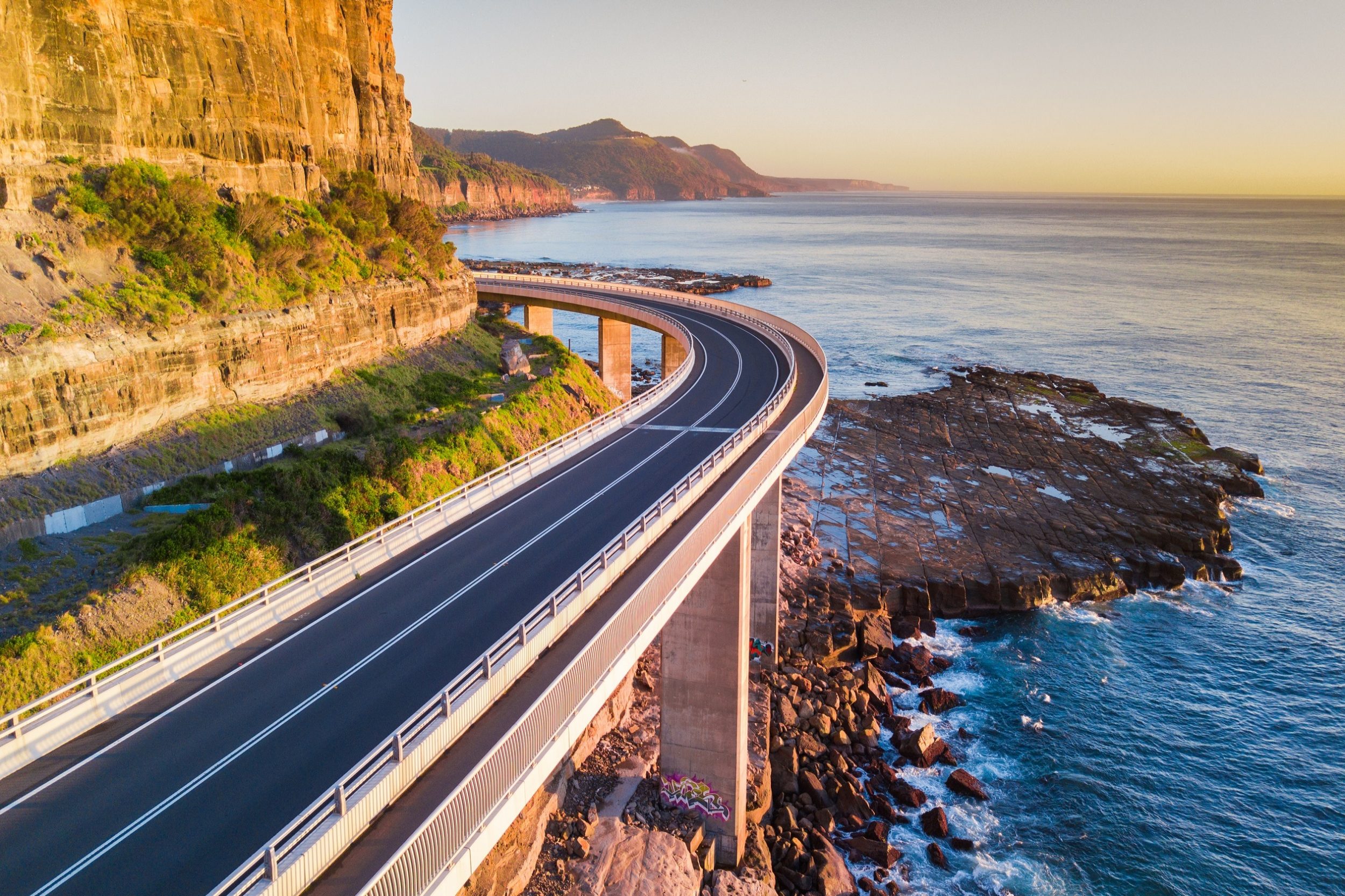

Large shadow

Lorem ipsum dolor sit amet, consectetur adipiscing elit, sed do eiusmod tempor incididunt ut labore et dolore magna aliqua. Ut enim ad minim veniam, quis nostrud exercitation ullamco laboris nisi ut aliquip ex ea commodo consequat. Duis aute irure dolor in reprehenderit in voluptate velit esse cillum dolore eu fugiat nulla pariatur. Excepteur sint occaecat cupidatat non proident, sunt in culpa qui officia deserunt mollit anim id est laborum.


Small Shadow

Lorem ipsum dolor sit amet, consectetur adipiscing elit, sed do eiusmod tempor incididunt ut labore et dolore magna aliqua. 


Right overlapping text

Lorem ipsum dolor sit amet, consectetur adipiscing elit, sed do eiusmod tempor incididunt ut labore et dolore magna aliqua. 


Right overlapping text

Lorem ipsum dolor sit amet, consectetur adipiscing elit, sed do eiusmod tempor incididunt ut labore et dolore magna aliqua. 


Basic image component


How to author the component

  1. To add a component to a page, hover over the blue box that says “Drag components here”, click it, then click the ‘plus’ icon.
  2. Click on the "Image Container" and then click on configure.
  3. Drag and drop an image and click done 
  4. You will see the image displayed on the left and space to add other components on the right
  5. Click on "Drag components here" on the right hand side and drag and drop Rich Text and CTA
  6. By default the components on the right side will be left aligned
  7. Click on the image container, In-style option or click on configure and style tab to choose a specific style
  8. Click on done to complete authoring the image container